
Help, I’m Drowning in Emails!
When pair programming, I occasionally see software developers with a full inbox. Like, literally hundreds or even thousands of unread emails amassed over months. Not only does that make it easy to miss important mails or meeting invites, I imagine it also must cause quite a bit of stress.
What I did for a long time in order to prevent such a flood of emails was to click on each mail once to mark it as read—even those that I quickly recognized as unimportant noise and didn’t actually read. If something seemed important but not urgent, I manually marked it as unread again. This successfully prevented the problem of having hundreds of unread mails in the inbox which only grow in number over months and years, and it made sure that I didn’t miss any important mails, but it also was very time consuming as I head to regularly read all of my mails.
Since then I’ve learned some tricks (most notably from Scott Hanselman) that I want to share with you here.
How I organize my inbox
Most email clients and providers have some way of setting up folders and rules for automatically moving emails to those folders. I’m sure you’re aware of that, and I won’t talk about how to configure your email client.
Of course you can set up folders and rules to organize your mails by category or by sender and end up with hundreds of mails scattered over a dozen folders with still dozens of emails each. I’m not sure if that makes it much easier to stay current with your mails, so instead here is my very simple system for organizing my email inbox. This is what has been working well for me for a long time now. Go ahead and adapt it for your own needs.
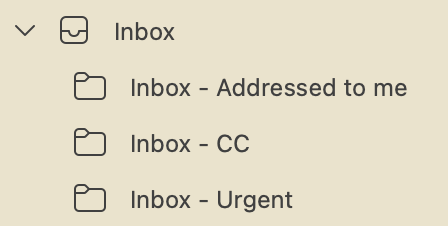
Inbox - Addressed to me
Emails that have my email address in the “to” field are moved to this folder. I regularly read that folder, a few times per day, until it is at 0 unread (unless I manually mark something as unread to handle it the next day).
Inbox - CC
If I’m only CC-ed, I read it less often. This usually contains more mails than the “to me” folder. I do read those, but as I am not addressed directly and it’s more of an “FYI”, I read those maybe once per day or even every 2 days or so. This makes a huge difference for prioritization. I do receive the info, but a CC has never been urgent enough that I had to read it immediately. If that ever occurs, I will inform the sender that they please address it to me, but that situation hasn’t come up yet.
Inbox - Urgent
This folder contains the mails that are explicitly flagged as “urgent” (or “important”) by the sender. This is rare, but when it happens I might have a single unread mail in there and know to read it ASAP. It also includes some short notice Outlook calendar updates that Outlook marks as high priority.
Parent Inbox
Anything that doesn’t get caught by any of these filters stays in the parent inbox. This includes for example forwards and contact groups that I am part of.
With this setup, I can easily keep the number of unread emails close to zero at all times. After a longer absence, I can focus on the important and urgent stuff and catch up with the less urgent “FYI” stuff over the next few days. If I was CC-ed in an email two weeks ago while I was on vacation, it doesn’t hurt if I read it two days from now.
Conclusion
Now, if you chose to try this system and have set up your folders and rules, but you still have a few hundred old emails waiting to be read, you might want to consider declaring email bankruptcy and just mark all mails older than 2 weeks as read. You still have the search if you need to look for something specific later on, but you will never get around to reading those mails from weeks or months ago anyway.
If you receive a lot of newsletters or things like build reports and ticket updates on the same mail account, you might want to have another folder for those—but if this is the majority of your mails and you won’t read them anyway, then your “filters” should maybe be more of the “unsubscribe” kind, or you rigorously filter out the important ones (“Build failed”) and move them to urgent based on their contents or subject line. The goal is to separate the signal from the noise.