

Have you already read part 1?
Recent files/locations
“Which file was it again? I’ve had it open recently, but I thought I don’t need it right now.” No more! From now on, you’ll simply find your recently opened files (and common tool windows) by pressing “Ctrl/Cmd+E”.
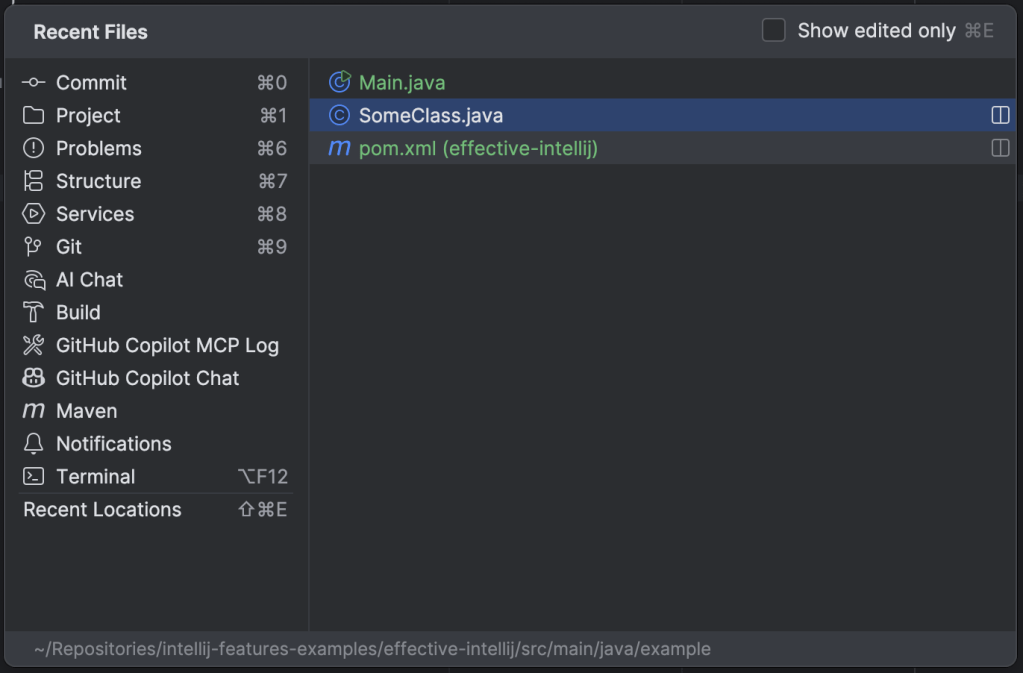
Similarly, you can find your recent locations within those files by adding the Shift key (“Ctrl/Cmd+Shift+E”).

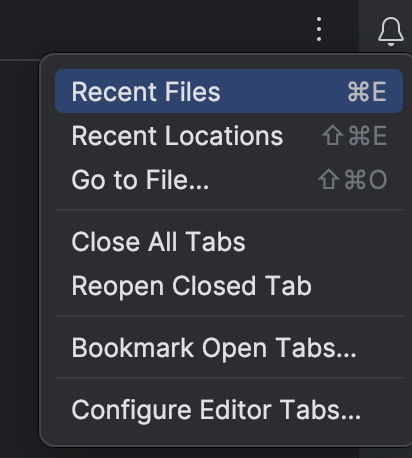
If you fear you might forget the shortcuts before you get used to actually using them, you can find the same actions in the kebab menu at the end of the tab bar or using “Search All” (see part 1). In general, knowing where to find the functionality (and actually using it) is in my opinion more important than using the keyboard shortcut, even if you use the mouse; at least temporarily, until you’ve built the muscle memory to use the keyboard shortcut without thinking.
Compare with clipboard
Say you have two pieces of code that look very similar. Are they actually the same? If not, what are the differences? Similarly to how you can diff two files, or two versions of the same file, you can also diff against your clipboard contents. Simply copy one of the code snippets, then select the other and “Compare with Clipboard”.
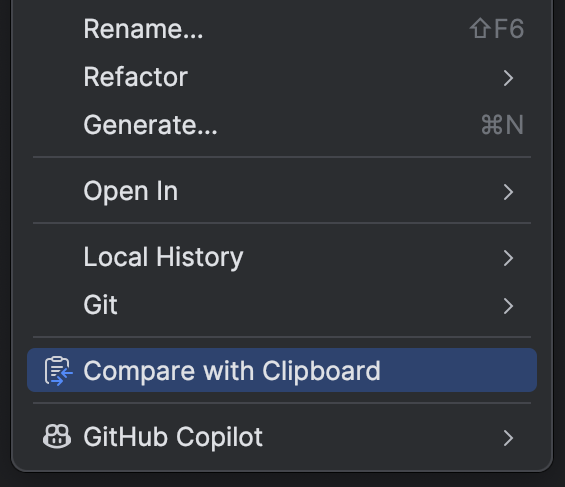
This can be very helpful for example before refactoring some duplicated code, or when dealing with lots of similarly structured XML data, etc.

Search in menus
You can search/filter in some menus, even though it’s not explicitly indicated until you start typing. This can be very helpful when you want to avoid switching between keyboard and mouse or when the list of suggestions is long.

For example, if you build the muscle memory, you can blindly press Option/Alt+Enter, type a short string that uniquely matches your desired option, and press enter, without the cognitive load of reading the options and clicking.
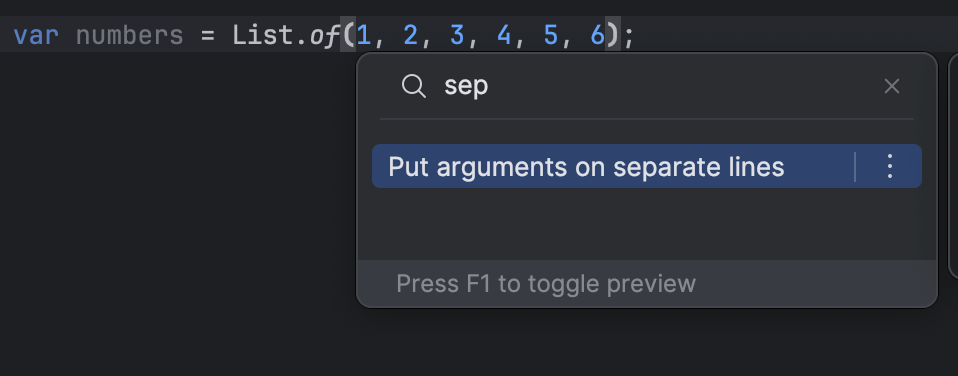
This search is available in the context actions, the structure view, the bookmarks view, and others.
 Raimund Krämer