

There are some features in IntelliJ that I consider rather foundational, but I often see the average developer not using them and doing things the hard (and more error-prone) way instead, basically ending up using the IDE as just a fancy text editor. If you’re a developer who regularly uses IntelliJ (or Android Studio, or another IDE based on the IntelliJ platform), I hope these tips help you. If you are using a different IDE (like Visual Studio, perhaps with ReSharper), you might want to search for equivalent or similar functionality in your IDE and thus still benefit from the tips.
Be warned, however, that being aware of their existence is only the first step, and you will need to consciously use them until they become muscle memory and your fingers start using them without thinking. Also, consider sharing the knowledge and maybe this article with your colleagues if you found it helpful.
In part 1, we look at two features that every single developer (who uses IntelliJ) should know and use regularly, but too often I see developers who don’t even though they’ve been using IntelliJ for a long time.
Search everywhere
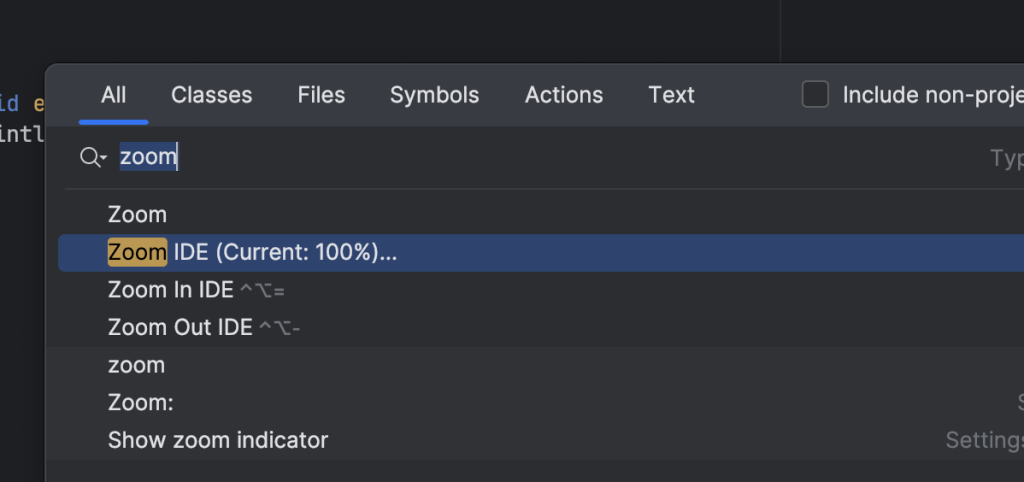
When you press the shift key twice (“double shift”), it opens a search dialog where you can search for files, text, actions, and more. This should be your main way of finding files most of the time instead of manually clicking through the file tree. Since you can also search for actions, you can search for any setting or menu entry. Let’s say you forgot where to find the menu to zoom the IDE (which you might want to use when sharing your screen using a 4k screen)
Or you want to generate a constructor. You may or may not know the shortcut for the “Generate …” menu, but for the sake of the example let’s assume you don’t. You probably know that you can access it via the right click menu, but that forces you to move your hands from the keyboard to the mouse and click through nested menus. Instead, just press double shift, type “constructor”, hit enter, and the constructor gets generated. If you already mostly use the keyboard, this takes less than a second and after using it a few times, muscle memory takes over.

These were just two examples, but the main point is that you can use it to search for all of the things that you don’t use often enough to memorize the keyboard shortcut or if you want to avoid searching through nested UI menus.
Context Actions
You’re probably familiar with this little light bulb icon that sometimes appears when you select a piece of code for which IntelliJ has suggestions for improvement, like little simplifications or even warnings regarding correctness.
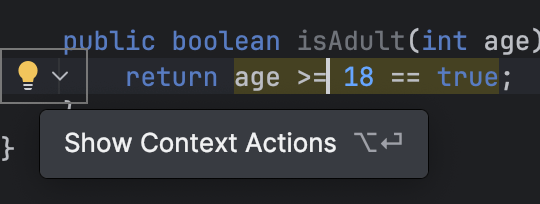
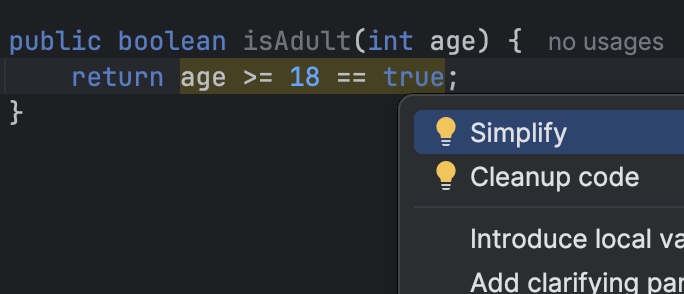
Unfortunately, I often see developers completely ignoring these, even though the improvement would be a simple “Alt/Option+Enter” (or a click on the light bulb if you haven’t learned the shortcut yet). Perhaps many developers have learned to ignore them when working with legacy code with tons of issues/suggestions, but then they also ignore warnings in their own new code that they’ve just typed. If that is you, you might want to make a habit of actually noticing the highlighted suggestions, at least in new code, and treat existing legacy code using the scout rule (improve it incrementally).
However, that’s not all. What even more developers (probably the majority from what I’ve seen) are not aware of is that IntelliJ provides many context actions without highlighting the code, simply because they are situational and not considered an improvement in all cases. Using these context actions can not only save you some time typing, but more importantly, they are deterministic and work directly on the syntax tree, so you’re far less likely to make mistakes compared to manual typing and cut-and-pasting.
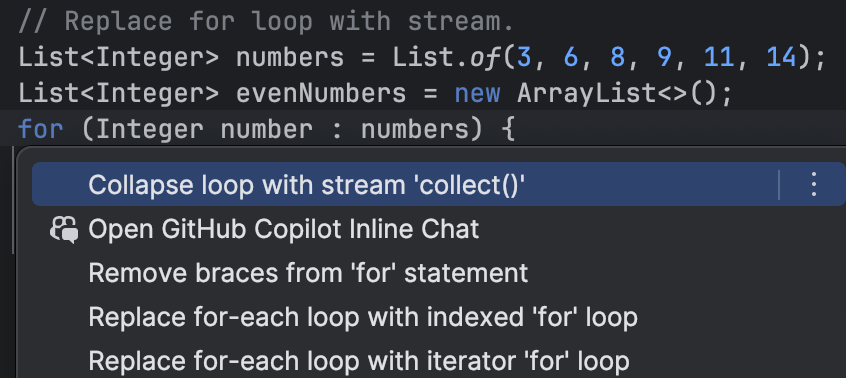
For example, there’s a quick action to replace a for loop with a stream and vice versa (note that it’s only available when there is an equivalent stream expression). It’s not highlighted, because whether you want to use a loop or a stream might be situational, and because the quick actions is symmetrical (loop to stream and stream to loop), but you usually find the quick actions that you would expect exactly where you would expect them, in this case on the “for” keyword. Way too often do I see developers manually typing what they think is the equivalent stream expression and then deleting the for loop.
Some more examples:
Say you have an if statement without braces. Or you want to invert an if condition to turn it into a guard clause. In both cases, you place the caret on the if and press “Alt+Enter, Enter”. Both actions are also reversible and the context for the quick actions is what you would expect (the if keyword).
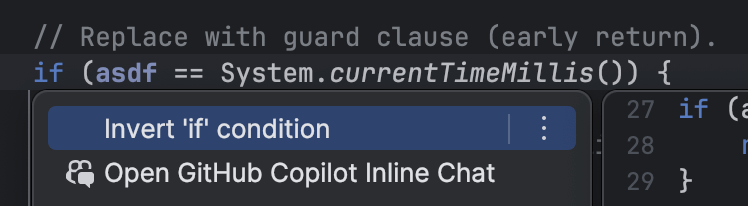
There are many more. If you want to try out a subset of them, you can use my IDE Muscle Memory Kata to practice. If you want to be efficient while editing code, you really should try to build muscle memory for navigating around in the code base and use context actions (and other automated refactorings, covered later) where applicable. With a good IDE and the right skill set, you can edit code very quickly and reliably while typing very little. It’ll probably be much faster and definitely more deterministic than prompting an “AI” agent.
There’s more to come in part 2.
 Raimund Krämer